 Grimorio
How to use Grimorio
Grimorio keeps your references (images, video, audio, PDFs, fonts and 3D models) in a folder on your own drive and helps you find them in a moment. This manual covers everything it does, from your first import to the command line. In a hurry? Read Getting started and skim the keyboard shortcuts.
Grimorio's interface is in Spanish for now. When this manual names a button or menu, it gives the Spanish label in quotes followed by what it means, like «papelera» (trash).
Getting started #
Grimorio runs on Windows and Linux. Downloads are on the latest release page on GitHub.
Install on Windows #
There are two ways to get it.
- The installer,
Grimorio-x.y.z-windows-x64-instalador.exe. It first asks whether to install for everyone on the computer (needs admin rights and goes to Program Files) or just for you (no admin rights, in%LOCALAPPDATA%\Programs). It adds a Start menu entry and, if you want, a desktop shortcut. - The portable version,
Grimorio-x.y.z-windows-x64-portable.zip. Unzip it anywhere and opengrimorio.exe. It contains the same files as the installer.
The installer isn't signed yet, so Windows SmartScreen will warn about an "unknown publisher". Click "More info" and then "Run anyway".
Uninstalling leaves your libraries and settings where they are. The installer doesn't associate any file extension.
Install on Linux #
Download Grimorio-x.y.z-linux-x64.tar.gz. It contains grimorio (the app) and grim (the command line), built on Ubuntu 24.04. It uses your system's Qt 6, so on Ubuntu 24.04 install these packages first.
sudo apt install qml6-module-qtqml qml6-module-qtqml-workerscript \
  qml6-module-qtqml-models qml6-module-qtquick \
  qml6-module-qtquick-window qml6-module-qtquick-templates \
  qml6-module-qtquick-controls qml6-module-qtquick-layouts \
  qml6-module-qtquick-shapes qml6-module-qtmultimedia
Then unpack it and run it.
tar xf Grimorio-*-linux-x64.tar.gz
cd Grimorio-*-linux-x64
./grimorio
Other distributions need Qt 6.4 or newer with the same modules. You can also build it yourself; the steps are in the project README.
Optional tools #
Grimorio stores any file it understands even if you have nothing else installed. A few system programs let it get more out of each file (thumbnail, duration, pages). None of them is required, and anything you import without them still comes in with all its data.
| For | Program | How to install |
|---|---|---|
| Video and audio (thumbnail, duration, waveform, playable copy) | ffmpeg | sudo apt install ffmpegwinget install Gyan.FFmpeg |
PDF and .ai | Poppler (pdftoppm, pdfinfo) | sudo apt install poppler-utilswinget install oschwartz10612.Poppler |
| PSD, XCF, EPS and font samples | ImageMagick | sudo apt install imagemagickwinget install ImageMagick.ImageMagick |
| EPS on Windows | Ghostscript | winget install ArtifexSoftware.GhostScript |
.blend and .fbx | Blender | Your system's packagewinget install BlenderFoundation.Blender |
| Playing video and audio on Linux | Qt Multimedia | sudo apt install qml6-module-qtmultimedia |
Grimorio looks for them on your PATH. After installing one, close Grimorio and open it again. On Windows, Blender is also found in its usual folder (C:\Program Files\Blender Foundation); if yours lives somewhere else, put the path to blender.exe in the GRIMORIO_BLENDER environment variable.
The first time #
When you open Grimorio without telling it anything, it opens the last library you used. If there isn't one, it creates a new one called Grimorio.grimorio in your Documents folder. A library is a regular folder; you can have several and switch between them (see Several libraries).
To open a specific one from a terminal, pass its path.
grimorio ~/References.grimorio
With an empty library, drag a few images onto the window and you're ready to go.
The window #
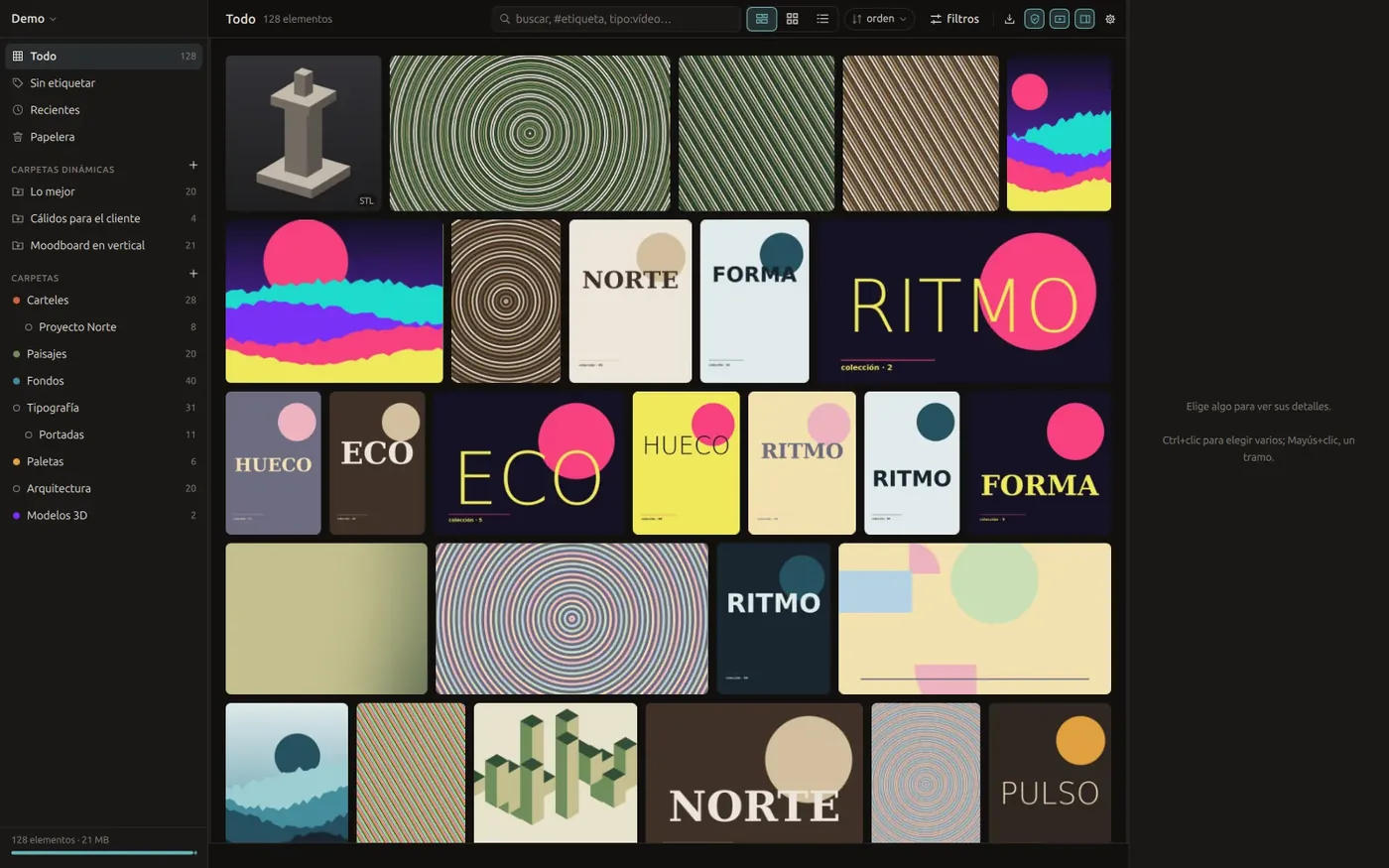
The window has three columns.
- The sidebar, on the left. At the top, the library name (click it to switch libraries). Below it, the fixed views «Todo» (everything), «Sin etiquetar» (untagged), «Recientes» (recent) and «Papelera» (trash), your dynamic folders and the folder tree. At the bottom, how many items you have and how much they weigh, with a bar that splits the size by type.
- The grid, in the middle. Above it are the search box, the view buttons, sort order and the «filtros» (filters) button. Below it, the status bar tells you what just happened and lets you undo it.
- The detail panel, on the right. It shows what you've selected and lets you change it. Fold it away and bring it back with Ctrl+I.
Drag the line between a side panel and the grid to make the panel wider. Double-click that line to put it back to its default width.
Importing #
Everything you bring in goes into the folder you're looking at; if you're on «Todo», it goes into no folder. When importing, Grimorio copies the original into the library, so you can delete or move yours without losing anything. If a file is already in the library (same content, even under another name), it's skipped so you don't end up with it twice.
The import button in the top bar opens a menu with every way to bring things in.
- «importar archivos…» (import files) opens your desktop's file picker.
- «pegar» (paste) brings in whatever is on the clipboard (Ctrl+V).
- «desde una dirección web…» (from a web address) downloads an image, a video or a page.
- «capturar una zona» (capture an area) takes a screenshot (Ctrl+Shift+X).
- «vigilar una carpeta del disco…» (watch a folder on disk) imports whatever shows up in a folder, on its own.
Drag and paste #
Drag files or whole folders from your file manager and drop them on the window. When you drop a folder, everything Grimorio knows how to store comes in and the rest is ignored (system files, temp files and so on).
Pasting with Ctrl+V understands several things.
- Files copied in your file manager, which get imported.
- A loose image, like a screenshot or something you copied with "Copy image" in your browser. It's saved and imported.
- A web address starting with
httporhttps, which gets downloaded. - Items you copied inside Grimorio with Ctrl+C. Those aren't duplicated; they're added to the folder you're looking at. Copying in one folder and pasting in another is the quick way to say "put this here too".
You can also drag images straight from your browser and drop them on the window.
From a web address #
If the address points to an image or a video, that file is downloaded. If it's a page, Grimorio looks for its main image (the one social networks use for link previews) and saves that. Either way the address is stored as the item's source; you'll see it in the detail panel, and search finds it.
Screenshots #
Ctrl+Shift+X takes a screenshot that goes straight into the library, without leaving a stray copy in your pictures folder.
- On Linux it uses your desktop's own screenshot tool, where you pick an area, a window or the whole screen. It works on X11 and Wayland. If your desktop doesn't offer one, Grimorio falls back to ImageMagick and lets you drag a rectangle.
- On Windows, for now, it captures the whole screen the mouse is on.
Watched folders #
A watched folder is a folder on your drive (your downloads, another program's export folder) whose new files come into the library by themselves. To set one up, open the Grimorio folder where new things should land and choose «vigilar una carpeta del disco…» (watch a folder on disk) from the import menu, or from that folder's right-click menu.
The first time, everything already in it comes in. After that, Grimorio checks every few seconds while it's open and, when you open it again, picks up whatever arrived while it was closed. Hidden files are skipped.
To stop watching, open the library menu (click its name at the top left) and use «dejar de vigilar» (stop watching) in the list of watched folders. Whatever was already imported stays.
Formats #
| Family | Extensions |
|---|---|
| Images | jpg jpeg png gif webp bmp tif tiff ico tga avif svg |
| Design files | psd psb xcf kra ora sketch ai eps. They come in as images, showing how they look. |
| RAW | cr2 cr3 nef arw dng orf rw2 raf srw pef 3fr erf. Grimorio uses the preview the camera stores inside. |
| Video | mp4 mov mkv webm avi m4v mpg mpeg wmv flv ogv |
| Audio | mp3 flac wav ogg oga m4a aac opus aiff wma. The thumbnail is its waveform, with the cover art beside it when there is one. |
| Documents | pdf |
| Fonts | ttf otf ttc woff woff2. The thumbnail is a sample of the typeface. |
| 3D models | stl obj ply glb gltf 3mf, plus blend and fbx if Blender is installed. |
For 3D models Grimorio also stores the triangle count and, when the format states its units (STL, 3MF, glTF and anything coming from Blender), the part's size in millimeters.
Organizing #
Everything here works the same with one item or ten thousand, and all of it can be undone with Ctrl+Z.
Selecting #
- Click to select one item.
- Ctrl+click to add or remove one more.
- Shift+click to select a range.
- Ctrl+A to select everything in view.
- The arrow keys move you around the grid; hold Shift to grow the selection.
- Esc clears the selection.
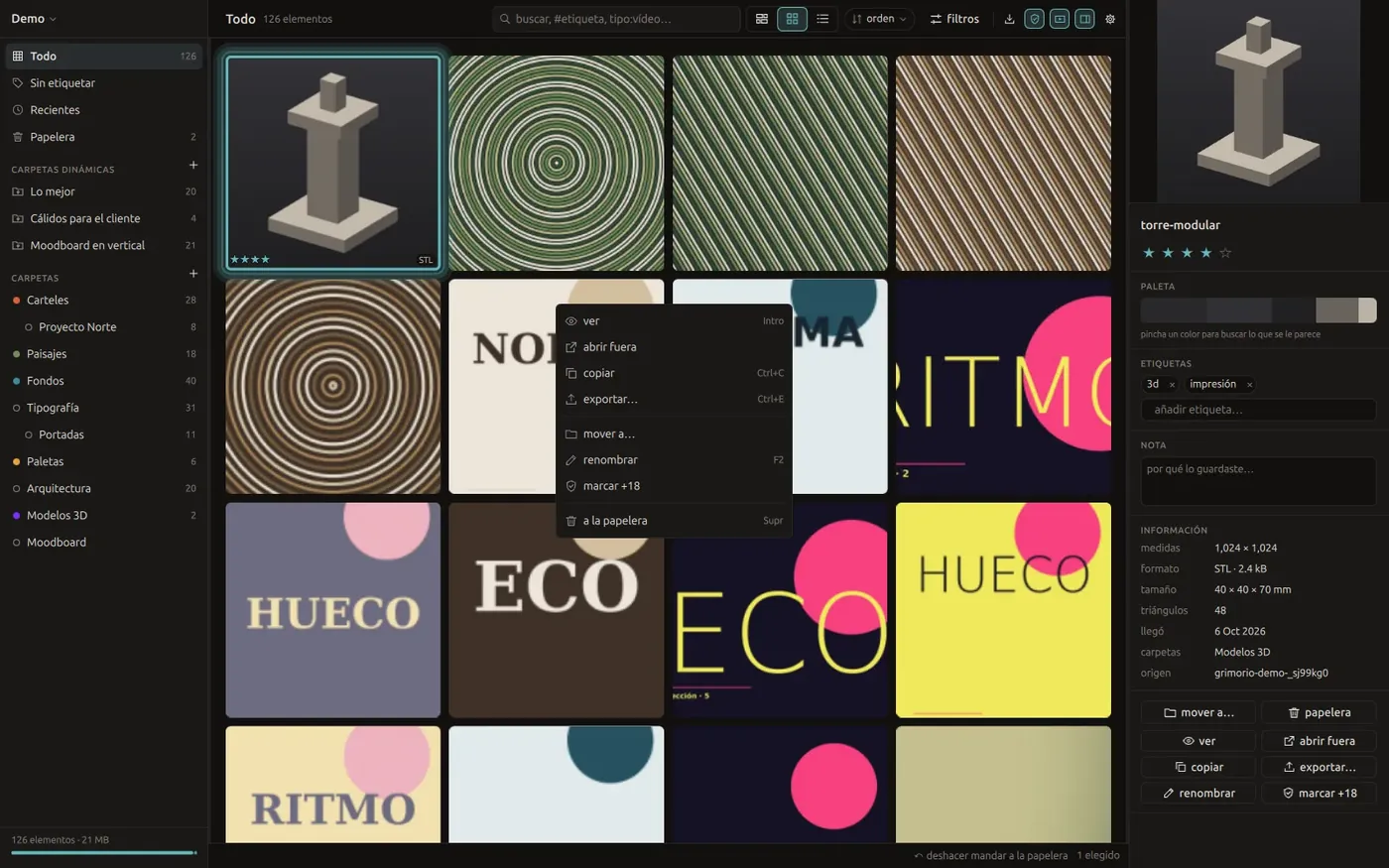
Right-clicking a cell opens its actions (view, open in another app, copy, export, move to, rename, mark as 18+ and send to trash). They're the same ones you'll find in the detail panel.
Tags #
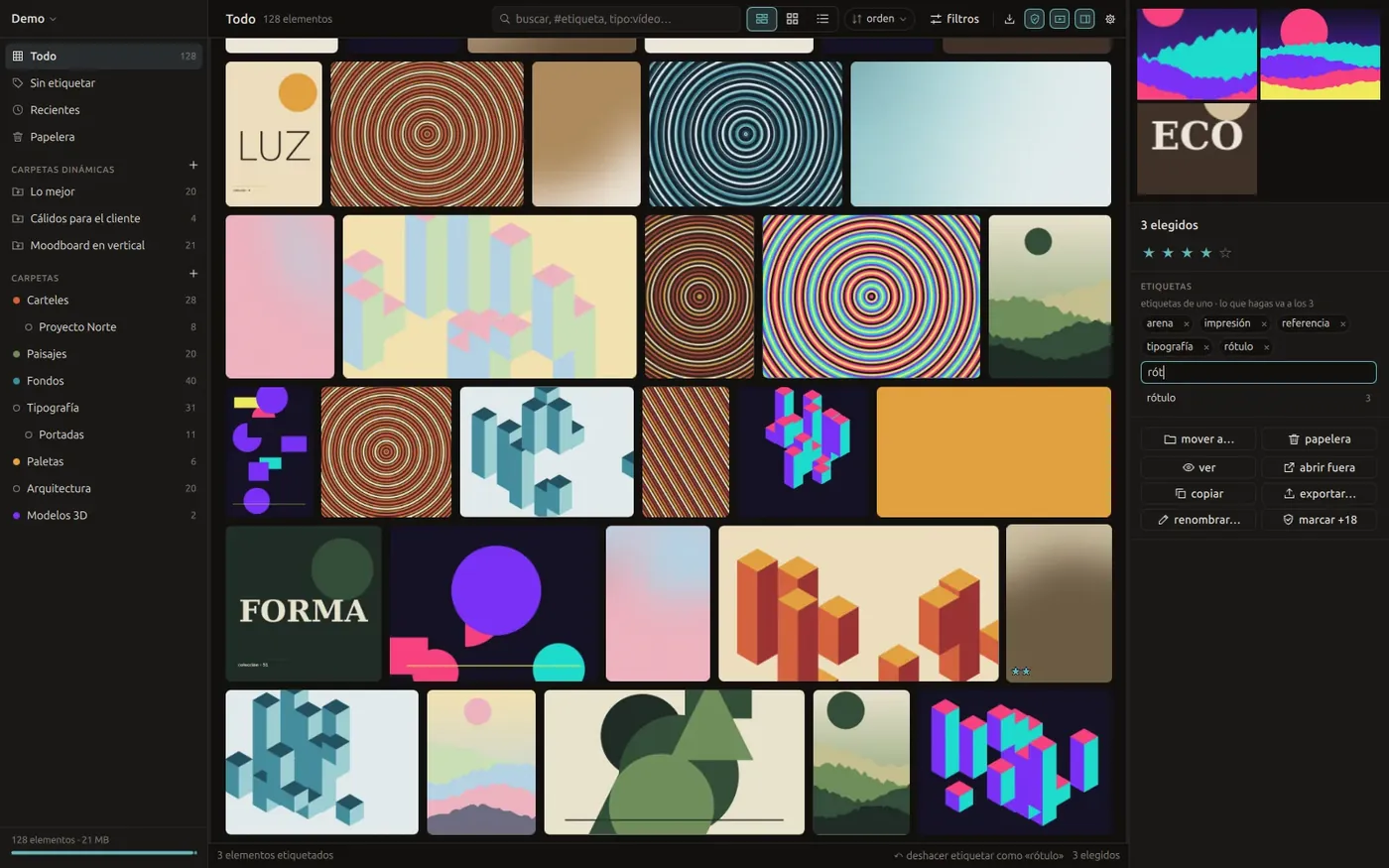
With something selected, press Ctrl+K (or click «añadir etiqueta…», add tag, in the detail panel) and type. Suggestions from your existing tags appear as you type. Tab completes the first one, the arrow keys pick another and Enter adds it.
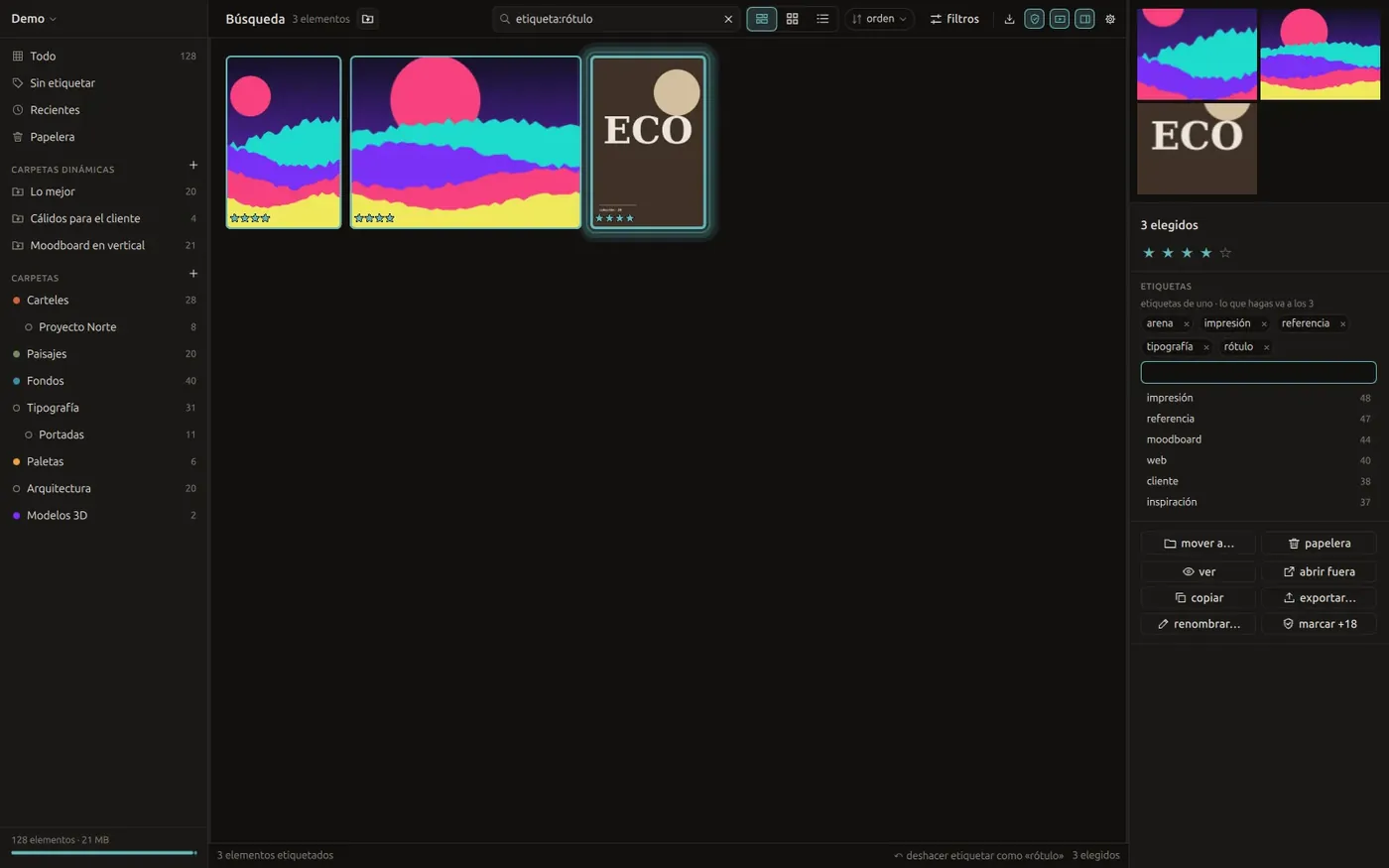
With several items selected, whatever you type goes to all of them. Each tag chip shows how many of them have it, so removing a tag is never a blind move. To remove a tag, click the × on its chip. Clicking the chip itself searches for everything with that tag.
Groups and colors #
Once you have lots of tags, sort them out in the tag manager. Open it from the search suggestions with «grupos y colores…» (groups and colors). It lists every tag in the library and lets you do a few things.
- Click a tag to filter by it.
- Rename it with the pencil. If the new name already exists, the two tags merge into one.
- Put it in a group with the colored dots. Each group has a color, which you change by clicking its swatch, and a name, which you change with a double-click.
- Remove it from every item with the ×.
There are no confirmation prompts here, because everything can be undone with Ctrl+Z. Deleting a group leaves its tags in place, ungrouped.
Stars and notes #
Press a number from 1 to 5 to give the selection stars, and 0 to clear them. You can also click the stars in the detail panel.
The detail panel also has a note field for jotting down why you saved something. The note is stored with the item and search finds it.
Renaming #
With one item selected, F2 (or clicking the name in the detail panel) lets you type a new name.
With several selected, F2 opens batch rename. You type a pattern and see how the first few will look before you accept. The pattern understands these tokens, which keep their Spanish names.
| Token | Becomes |
|---|---|
{nombre} | the current name |
{n} | a counter starting at the number you set on the right (1 by default) |
{n:3} | the counter padded with zeros to three digits (007); any width up to 12 works |
{fecha} | the day it was imported, like 2026-10-07 |
For example, ref-{n:3}-{nombre} turns "cat" into ref-007-cat if it's the seventh. Anything that isn't a token stays as typed, and a slash / becomes a hyphen.
Folders #
Folders in Grimorio work like tags with a hierarchy. An item can be in several at once, and the file never moves on your drive.
Create and edit
- Create a folder with the "+" in the folders header or with Ctrl+Shift+N. Type the name in the row that appears and press Enter.
- Hovering over a folder reveals another "+" that creates one inside it.
- Right-clicking a folder lets you create one inside, rename it, give it a color, watch a folder on disk or delete it. Deleting a folder deletes nothing that's in it.
- Right-clicking the empty space below the tree creates a top-level folder.
Moving around
Click a folder to see what's in it. Clicking the selected folder again, or the empty space below the tree, takes you back to «Todo» (everything).
Dragging
| You drag | From | What happens |
|---|---|---|
| the selection | a folder | it moves, entering the target folder and leaving the source one |
| the selection | «Todo» or a search | it's added to the folder without leaving any other |
| the selection | a folder, onto the space below the tree | it leaves the folder you were looking at |
| a folder | onto another folder | it's placed depending on where you drop it (see below) |
| a folder | onto the space below the tree | it goes back to the top level |
When you drop a folder on another one, a line shows what will happen before you let go. Drop it on the top edge of the row and it goes before it as a sibling; in the middle, it goes inside; on the bottom edge, it goes after it as a sibling. A folder can't be dropped inside itself or inside its own children.
While dragging, a thumbnail with the item count follows the cursor so you know what you're carrying.
Manual order #
Inside a folder you can arrange items in any order you like. Drag an item within the grid and the others move aside to make room. The order is saved per folder and used when you pick «a mano» (manual) in the sort menu.
To reorder, drag one item at a time, with no text in the search box and no color or duplicates filter on.
Duplicates #
Grimorio recognizes exact copies by their content, and near-identical images (the same picture at another size or compression) by their visual fingerprint. To see them, click «repetidos» (duplicates) in the filter row or type dupes:yes in the search box. They show up in groups, exact copies first.
With that filter on, the «quitar copias exactas» (remove exact copies) button appears. From each group of identical copies it keeps the one you imported first and sends the rest to the trash. Ctrl+Z undoes it.
18+ and safe mode #
Mark an item as 18+ from the detail panel or the right-click menu («marcar +18»). The mark lives in its item.json, can be undone like everything else and is searchable with adult:yes (or +18:yes).
The mark alone hides nothing. That's what safe mode is for, a button in the top bar that appears as soon as you have something marked (it's in the settings too). With safe mode on, the following happens.
- In the grid and the detail panel, marked items are blurred and carry an 18+ badge.
- A marked video doesn't play when you hover over it.
- If you drag it to another app, it isn't shown sharp along the way either.
- The viewer does show it in full, since opening it means you asked to see it. Back in the grid, it's blurred again.
Trash #
Delete sends the selection to the trash. Trashed items keep their tags and folders in case they come back, and they don't mix with the rest of the library.
Open «Papelera» (trash) in the sidebar to see what's there. Inside it, Delete restores the selection, just like the «recuperar» (restore) button.
«vaciar papelera» (empty trash) and «borrar para siempre» (delete forever) remove the files from your drive. Grimorio asks first because this can't be undone, and the whole undo history for the session is cleared too.
Undo #
Ctrl+Z undoes any change (tags, stars, notes, names, folders, 18+, trash, imports) and Ctrl+Shift+Z redoes it. The status bar says what just happened and has its own undo and redo buttons.
Undoing an import sends the imported items to the trash, so undoing never loses a file. The history lasts while Grimorio is open and starts fresh the next time you open it.
Getting things out #
- Ctrl+C copies the selection as files, and also as an image when it's a single picture, ready to paste into another program.
- Ctrl+E exports the selection to a folder you choose.
- Drag the selection out of the window to drop it in another app (an editor, a chat, your desktop). Up to a thousand items per drag.
- «abrir fuera» (open outside) opens the original with the program you use for that kind of file.
Searching #
The search box at the top (Ctrl+F) decides what you see. It understands plain words and filters, and answers in milliseconds even with a hundred thousand items. Esc or the × clears it.
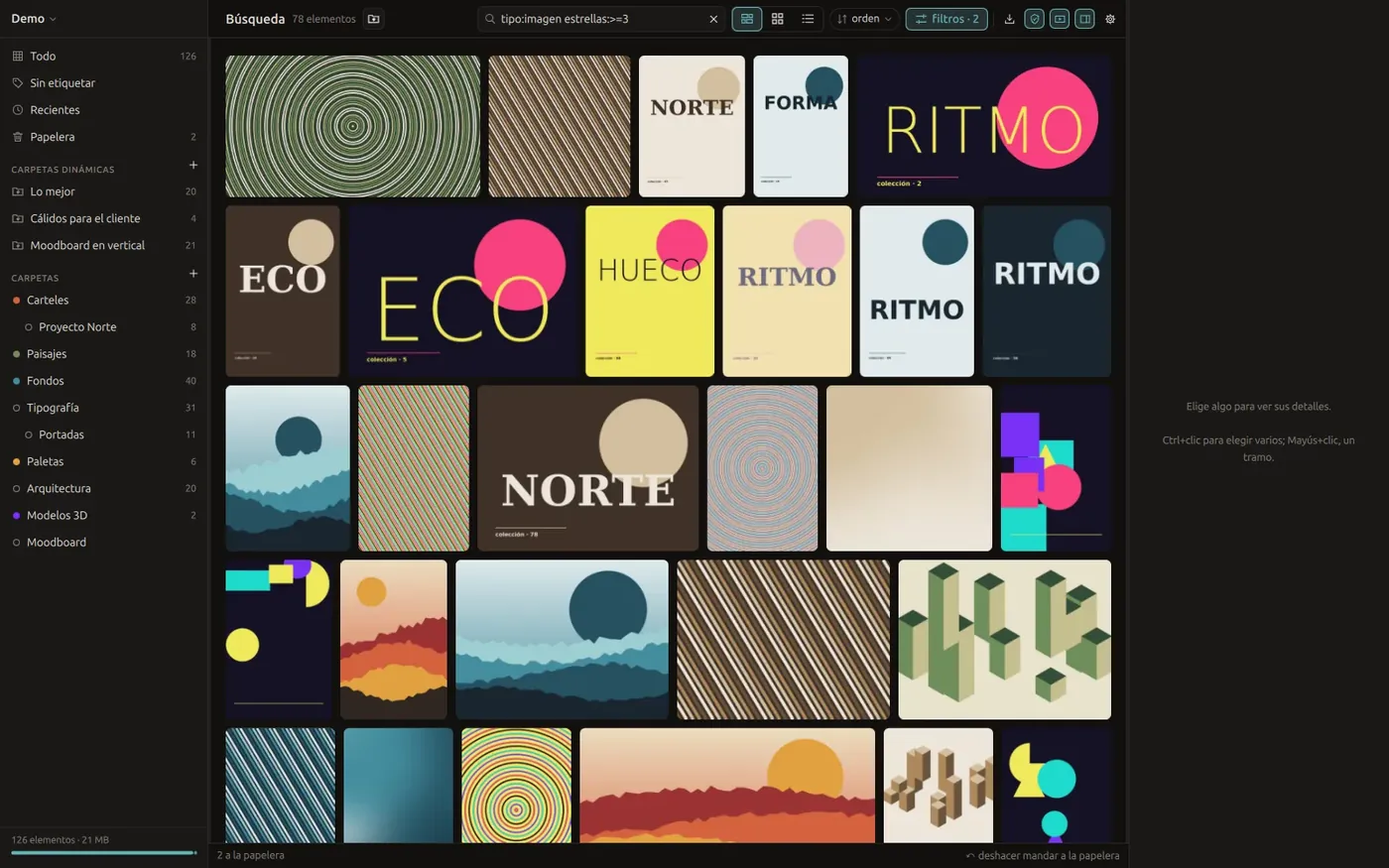
lettering #signage stars:>=4 size:>2mb orient:portrait
As you type, a dropdown suggests tags, folders, dynamic folders and filters. Move with the arrow keys and pick with Enter. Start with # to see tags only.
Every filter has a Spanish name and most have an English one too. This manual uses the English names; the Spanish ones (etiqueta:, estrellas:, fecha:…) work just the same, and they're what the filter row writes.
Free text #
Words without a field are matched against the name, tags, note, source and extension. The start of a word is enough (ca finds "cat"), and if you type several, all of them must match.
Anything the search box doesn't recognize as a filter is searched as text. Paste a web address and it searches for that address instead of throwing an error.
Filters #
| Type | To find |
|---|---|
#signagetag:signage | items with that tag. If it has spaces, wrap it in quotes, as in tag:"generative art" |
tagged:no | items with no tags at all (tagged:yes, items with at least one) |
ext:video | a whole family, which can be image, raw, video, audio, document, font, model (or 3d) |
ext:png | one specific extension |
stars:>=4 | by stars, from 0 to 5 |
width:>=1920height:<500 | by size in pixels |
size:>2mb | by file size; takes k, mb and gb. size:10mb on its own means "10 MB and up" |
orient:portrait | portrait, landscape or square |
color:#1f6b72 | items close to that color (see By color) |
date:7d | by import date (see Dates) |
dupes:yes | groups of exact and near-identical copies |
adult:yes+18:yes | items marked 18+ (adult:no, the rest) |
trash:yes | items in the trash |
sort:name | sorts by imported-desc, imported-asc, name, name-desc, size, size-asc, stars, random or manual |
Numbers take >=, >, <= and <. A number with no comparison means "exactly this". For yes/no values, yes, y, true and no, n, false all work.
The sidebar's fixed views are searches like these. «Sin etiquetar» (untagged) is tagged:no, «Recientes» (recent) is date:7d and «Papelera» (trash) is trash:yes.
If you type a value that only half makes sense, like stars:lots, the search keeps going and the status bar lets you know.
Dates #
The date: field looks at the day you imported each item.
| Type | Means |
|---|---|
date:today, date:yesterday | today's or yesterday's imports |
date:week, date:month, date:year | the last 7, 30 or 365 days |
date:12h, date:7d, date:2w, date:3m, date:1y | the last hours, days, weeks, months or years |
date:2026, date:2026-10, date:2026-10-07 | a whole year, month or day |
date:>=2026-01-01, date:<2026 | from or until a date |
Relative dates are worked out every time you search. A dynamic folder with date:7d always shows the last week.
By color #
Every image stores its color palette when imported. Click a color in the palette in the detail panel and Grimorio finds what looks like it, most similar first. You can also type it yourself with color:#rrggbb or pick it in the «color» filter in the filter row.
The filter row #
The «filtros» (filters) button opens a row of dropdowns for type, stars, shape, color, import date and duplicates. Picking something there writes the filter into the search box, so you always see in plain text what's applied and can tweak it by hand. The button shows how many filters are on even when the row is folded.
The same row has «guardar como carpeta» (save as folder), which turns the search into a dynamic folder.
Viewing #
The three views #
The buttons in the top bar (or Ctrl+L, which cycles through them) change how the grid is drawn.
- Justified, rows that fill the width and keep each item's proportions.
- Grid, square cropped cells, all the same size.
- List, one row per item with thumbnail, name, type, dimensions, size, stars and date. Click a column title to sort by it.
Ctrl+= and Ctrl+- make cells bigger or smaller. In the filter row, «nombres» (names) shows each item's name under its cell. Grimorio remembers the view, the names and the detail panel for next time.
Videos play when you hover over them, looped and muted. The «vídeo al pasar el ratón» (video on hover) button in the top bar keeps them still if you prefer.
The detail panel #
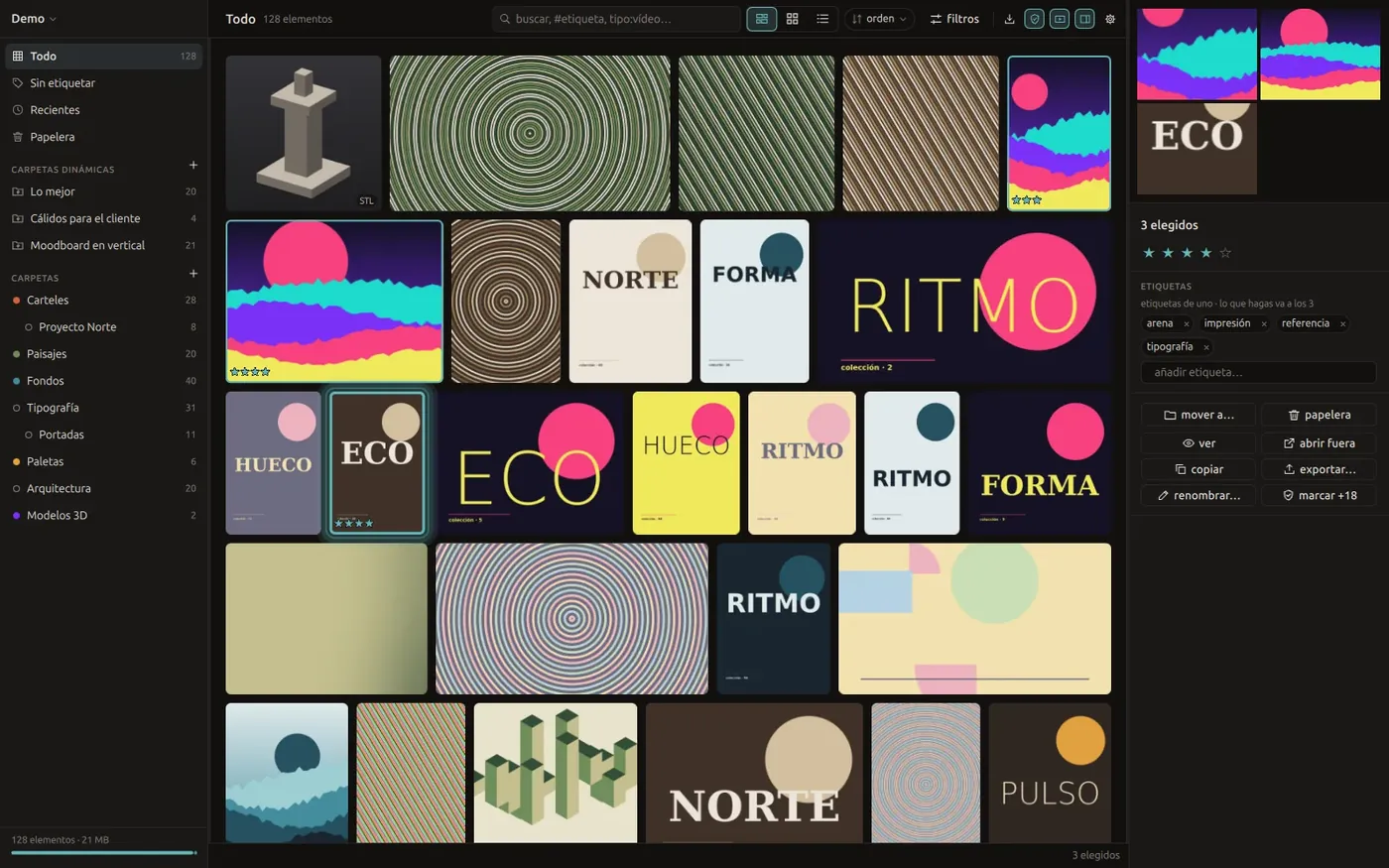
From top to bottom, the right panel shows a large preview (a mosaic when several are selected), the name (click it to change it), stars, color palette, tags, note and technical info (format, dimensions, file size, duration, pages or triangles depending on the type, when it arrived, which folders it's in and its source). The actions sit at the bottom.
Select a video and it plays in the panel with sound and basic controls.
The viewer #
Press Enter (or «ver», view, in the menu) to open the selection full screen. Each kind of file has its own way of being viewed, and the viewer picks it for you.
- The arrow keys or a click go to the next or previous item. The mouse wheel does too, except for photos, audio, PDFs and 3D models, which use it to zoom or scroll. Home and End jump to the first and last.
- Space goes to the next item, or pauses and resumes if what you're viewing plays.
- Esc, a right-click or a double-click close the viewer.
The first time you open a video, an audio file, a PDF or a model, Grimorio prepares what it needs to show it and keeps it in the library's cache. After that it opens instantly.
Photos, zoom and eyedropper #
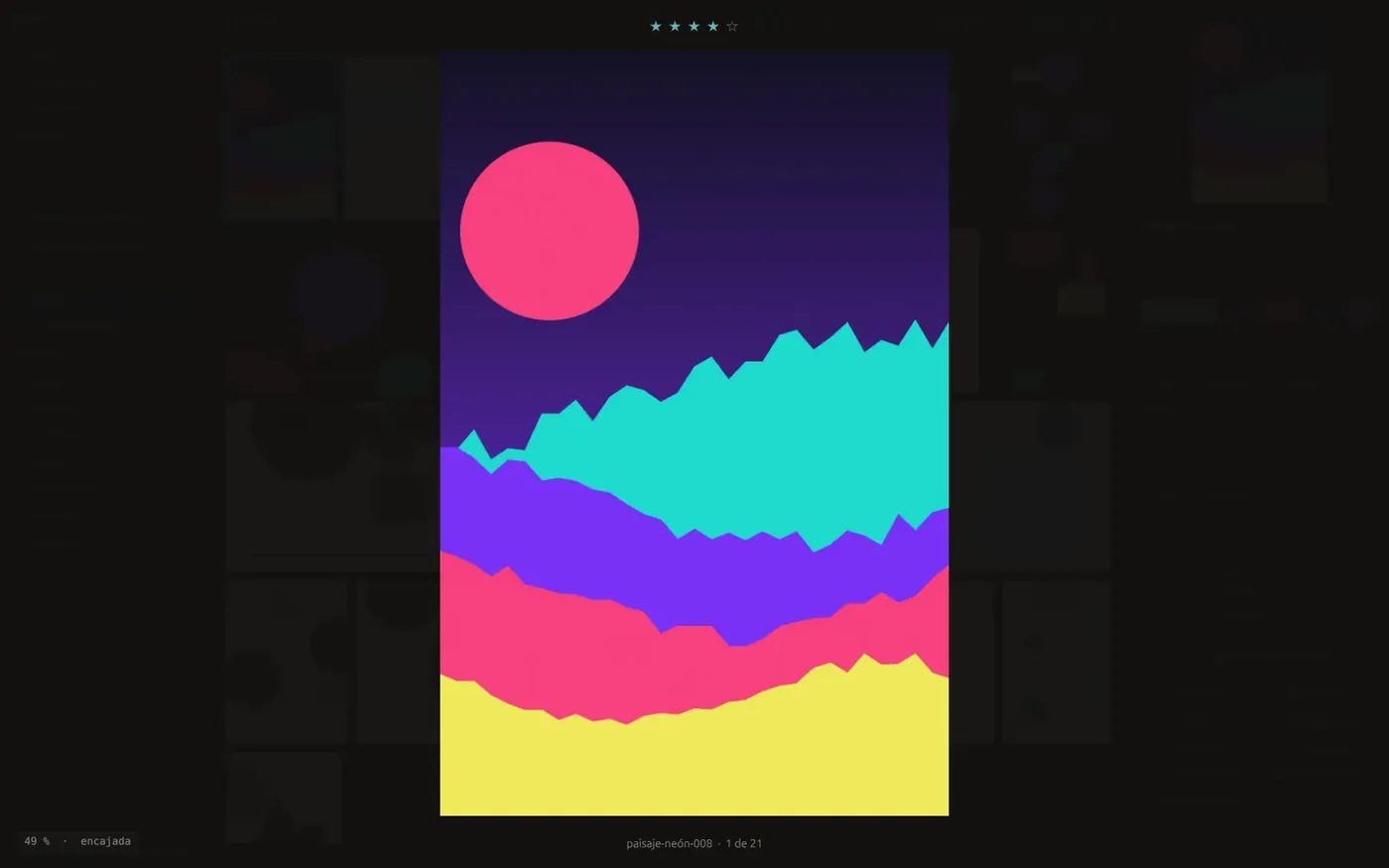
- The wheel zooms in and out around the mouse, up to 64 times. + and - do the same from the keyboard.
- When zoomed in, drag to move around the image.
- Double-click or Z toggle between fit to screen and 100%.
- Zooming past the preview loads the full-resolution original. From 2× on, pixels show as sharp squares, and from 12× on a pixel grid appears.
- C copies the color of the pixel under the mouse to the clipboard, in hex (
#1f6b72).
The number at the bottom is the scale relative to the original. 100% means one photo pixel per screen pixel.
Video #
At the bottom there's the timeline and a row of controls (back 5 seconds, one frame back, pause, one frame forward, forward 5 seconds, time with tenths, speed, A-B loop, loop and volume). Hover over the timeline to see the frame at that moment.
| Key | Does |
|---|---|
| Space | pause and resume |
| Shift+← / → | five seconds back or forward |
| , / . | one frame back or forward (pauses first) |
| [ / ] | slower or faster, from 0.1× to 2× |
| I / O | start and end of the section to repeat |
| X | clear the section |
| L | loop |
| M | mute |
On the speed button, a click goes up a step, a right-click or scrolling down goes down a step, and a middle click resets to 1×. In slow motion the pitch drops.
If a video uses a format the player can't open (ProRes, DNxHD and the like), Grimorio makes a copy it can play, tells you while it works and switches to it when done. This needs ffmpeg, and the copy stays in the cache for next time.
Audio #
The waveform is on top and the frequency spectrum below, sharing the same range and playhead. You get the same controls and keys as for video.
- Click or drag to jump to a moment.
- The wheel zooms around the mouse, and Shift+wheel scrolls sideways.
- Double-click shows the whole thing again.
- Hover to read the time and, over the spectrum, the frequency.
PDF #
The whole document, page after page. Scroll with the wheel, jump with Page Up and Page Down, and zoom with Ctrl+wheel or the buttons. Poppler needs to be installed.
3D models #
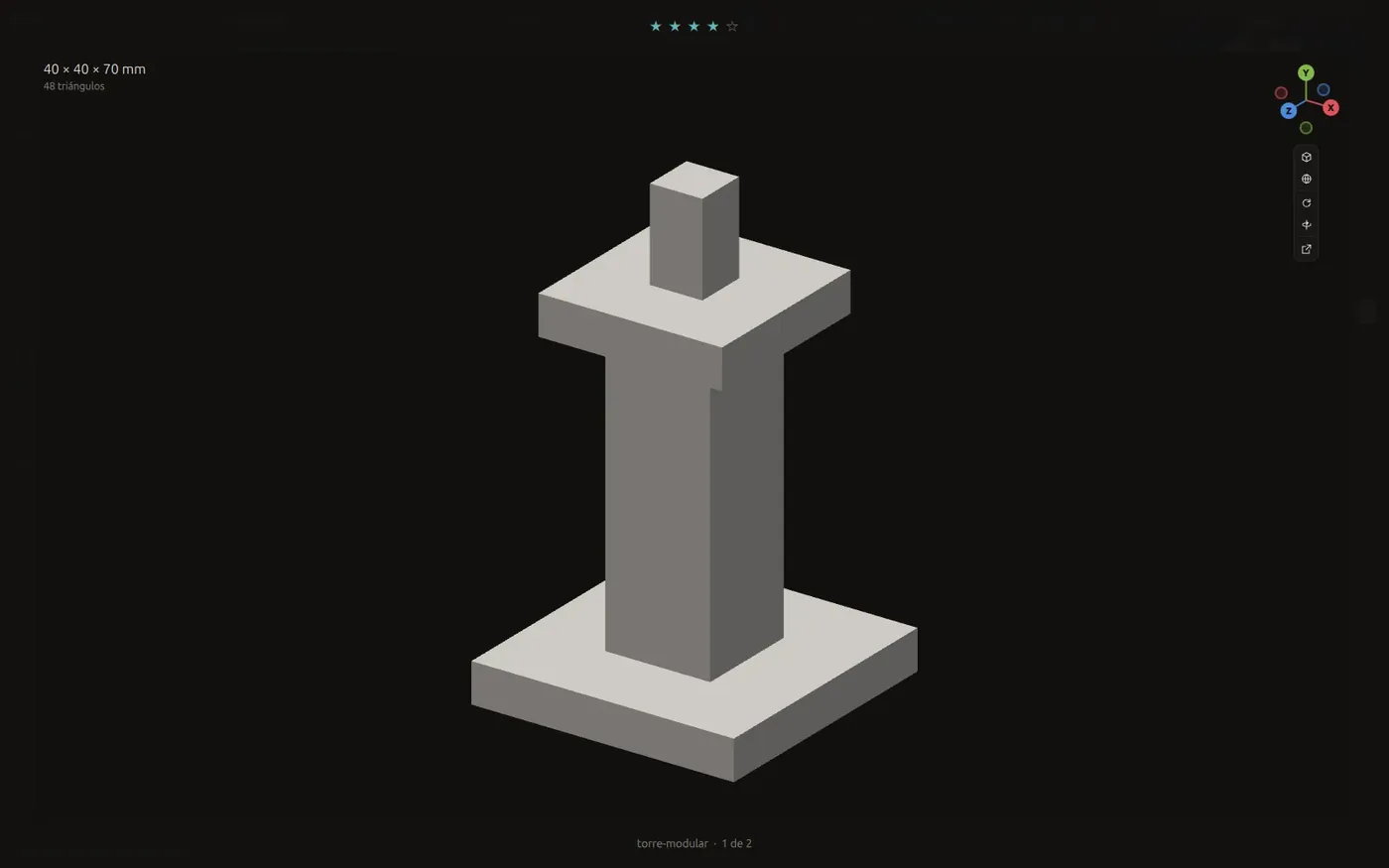
- Drag to rotate the part.
- Use the right or middle button to pan.
- The wheel zooms in and out.
- Double-click returns to the starting view, the same angle as the thumbnail.
The axes sit at the top right, like in Blender. They turn with the part and tell you where you're looking from. Click one of their balls to look along that axis (X, Y or Z, or from the opposite side), or drag on them to rotate.
Below the axes there's a column of buttons to show or hide edges, go back to the starting view, open the model in another program and straighten it. If a model arrives lying down or upside down (common with files exported Z-up), rotate it a quarter turn forward or sideways. The correction is remembered for that item and doesn't touch the file; another button removes it.
Dynamic folders #
A dynamic folder is a saved search with a name. Its contents are worked out every time you open it, so it fills itself with everything that matches.
- Type a search or set some filters, for example
ext:video stars:>=4 date:30d. - Click «guardar como carpeta» (save as folder) in the filter row, or the "+" in the «carpetas dinámicas» (dynamic folders) part of the sidebar.
- Give it a name and press Enter.
It shows up in the sidebar, above your regular folders. Click it to open it and click it again to go back to «Todo». The × that appears on hover deletes it without touching anything it shows.
A few ideas that work well.
stars:5for the very best.tagged:no date:weekfor what came in this week and still needs sorting.orient:portrait ext:imagefor phone-shaped moodboards.ext:model #printfor parts you want to 3D print.
Dynamic folders are stored as text in busquedas.json inside the library, and travel with it.
Keyboard shortcuts #
While you're typing in a text field, the shortcuts that clash with typing (Enter, Esc, Delete, F2, Ctrl+Z and the number keys) switch off. Click the grid to give it the keyboard back.
| Shortcut | Does |
|---|---|
| Ctrl+F | go to the search box |
| Ctrl+A | select everything in view |
| Ctrl+Z | undo |
| Ctrl+Shift+Z | redo |
| Delete | send to trash; inside the trash, restore |
| Ctrl+K | tag the selection |
| F2 | rename; with several selected, rename with a pattern |
| 0 to 5 | stars for the selection |
| Ctrl+C | copy the selection |
| Ctrl+V | paste files, an image or a web address |
| Ctrl+E | export the selection to a folder |
| Ctrl+Shift+N | new folder |
| Ctrl+Shift+X | take a screenshot |
| Ctrl+L | cycle between justified, grid and list |
| Ctrl+I | fold or open the detail panel |
| Ctrl+, | settings |
| Ctrl+= / Ctrl+- | bigger or smaller cells |
| Enter | open the viewer |
| Esc | close whatever is open, or clear the selection |
| Shortcut | Does |
|---|---|
| ← → ↑ ↓ | move from item to item |
| Shift+arrows | grow the selection |
| Home / End | first or last item |
| Page Up / Page Down | one screen up or down |
| Ctrl+click | add or remove one item |
| Shift+click | select a range |
| Shortcut | Does |
|---|---|
| ← → ↑ ↓ | previous or next |
| Backspace | previous |
| Space | next, or pause and resume if it plays |
| Home / End | first or last item |
| Esc | close the viewer |
| + / - | zoom a photo in or out |
| Z | fit to screen or 100% |
| C | copy the color of the pixel under the mouse |
| Page Up / Page Down | previous or next page of a PDF |
| Shortcut | Does |
|---|---|
| Shift+← / → | five seconds back or forward |
| , / . | one frame back or forward |
| [ / ] | slower or faster |
| I / O | start and end of the A-B section |
| X | clear the section |
| L | loop |
| M | mute |
The library on disk #
Your library is a folder ending in .grimorio. Inside, each item has its original file and an item.json with its data, in plain text you can read. If you ever stop using Grimorio, everything is still there.
The layout #
References.grimorio/
├── library.json        library name and identity
├── folders.json        the folder tree
├── busquedas.json      dynamic folders
├── etiquetas.json      tag groups and colors
├── vigiladas.json      watched folders on disk
├── items/
│   └── 01/JK/01JKX7…/  one folder per item
│       ├── item.json   its data
│       └── original.jpg
├── index.sqlite        search index (can be rebuilt)
├── thumbs/             thumbnails (can be rebuilt)
├── cache/              converted video, waveforms, pages… (safe to delete)
└── trash/
The folders under items/ are split across two levels so none of them ends up with thousands of entries. Each item has a unique ID that starts with its import time.
index.sqlite, thumbs/ and cache/ are derived. If they get damaged or you delete them, grim reindex rebuilds the index from the item.json files, and the cache is recreated as you open things.
item.json #
{
  "id": "01JKX7Q2M8V3N4P5R6S7T8",
  "schema": 1,
  "name": "night lighting study",
  "ext": "jpg",
  "size": 4821904,
  "width": 4032,
  "height": 3024,
  "importedAt": "2026-08-25T10:12:33Z",
  "source": "https://…",
  "folders": ["01JKF…"],
  "tags": ["night", "reference"],
  "stars": 4,
  "note": "texture of the reflection on the asphalt",
  "palette": [{ "rgb": [18, 32, 64], "w": 0.41 }],
  "trashed": false
}
There's also the content hash (to spot copies), the visual fingerprint (for near-identical images), the duration of anything that plays, PDF page counts, and triangles and millimeters for 3D models. Empty fields aren't written. Every change is saved atomically, so a power cut leaves the previous file intact, never a half-written one.
The full format is in docs/FORMATO.md (in Spanish). Getting everything out without Grimorio takes two commands.
# all the data, one JSON per line
find References.grimorio/items -name item.json -exec cat {} + | jq -c .

# the originals
find References.grimorio/items -name 'original.*'
Backups and sync #
To back up, copy the whole folder while Grimorio is closed. You can sync it with Syncthing, Dropbox or whatever you use, and carry it on an external drive between Linux and Windows (the file names Grimorio creates are valid on both).
Open each library on one computer at a time. Grimorio won't open the same library twice on the same machine, but it can't tell whether another computer has it open through sync.
Several libraries #
Click the library name at the top left to see the ones you opened recently, create a new one («nueva biblioteca…», new library) or open another folder («abrir otra…», open another). When you switch, Grimorio reopens with the other library in under a second. «quitar de la lista» (remove from list) only takes it off the menu and deletes nothing.
Command line #
grim comes with Grimorio and works on the same library from a terminal. It's handy for bulk imports, scripts and fixing things. On Linux it's in the .tar.gz next to grimorio. On Windows it's grim.exe, in the folder where you installed Grimorio; add that folder to your PATH to call it from anywhere. Its messages are in Spanish.
To tell it which library to use, pass -L PATH (or --lib), set the GRIMORIO_LIB variable, or run it from inside the library folder.
export GRIMORIO_LIB=~/References.grimorio
grim init $GRIMORIO_LIB
grim import ~/Downloads/images --tag inspiration
grim search "#poster stars:>=4 orient:portrait"
grim stats
| Command | Does |
|---|---|
grim init PATH | creates an empty library (--name to name it) |
grim import PATH… | imports files or folders. --tag tags everything that comes in (repeatable), --mode copy|move|ref picks whether to copy, move or leave the original where it is, --origen URL records where it came from, --allow-duplicates imports even if it's already there |
grim ls | the latest imports (--limit, --sort) |
grim search "…" | searches with the same language as the window's search box. --json for scripts, --limit for more results |
grim show ID | an item's full record |
grim tag ID… --add X --rm Y | adds and removes tags |
grim star ID N | sets 0 to 5 stars |
grim adult ID… | marks as 18+ (--quitar to unmark) |
grim trash ID… | sends to the trash (--sacar to restore) |
grim empty | says how much emptying the trash would delete; with --de-verdad it deletes it, with no undo |
grim open ID | opens the original with the system's default program |
grim dupes | finds duplicates and near-duplicates (--distancia 0 for identical only) |
grim mirar FILE | tells you what Grimorio sees in a file without importing it (--png saves the thumbnail it would make) |
grim miniaturas | rebuilds thumbnails for items already imported (--tipo audio, video, modelo…) |
grim stats | library summary |
grim reindex | rebuilds the index from the item.json files |
Wherever it asks for an ID, you can use the full ID, the last eight characters shown in listings, or the beginning of the ID.
Read-only commands (search, ls, show, stats) work with the window open. Commands that change something refuse to run while the app has that library open, so nobody overwrites anybody's changes. Close Grimorio and try again.
grim --help and grim COMMAND --help list every option.
Settings #
Open them with Ctrl+, or the gear at the top right.
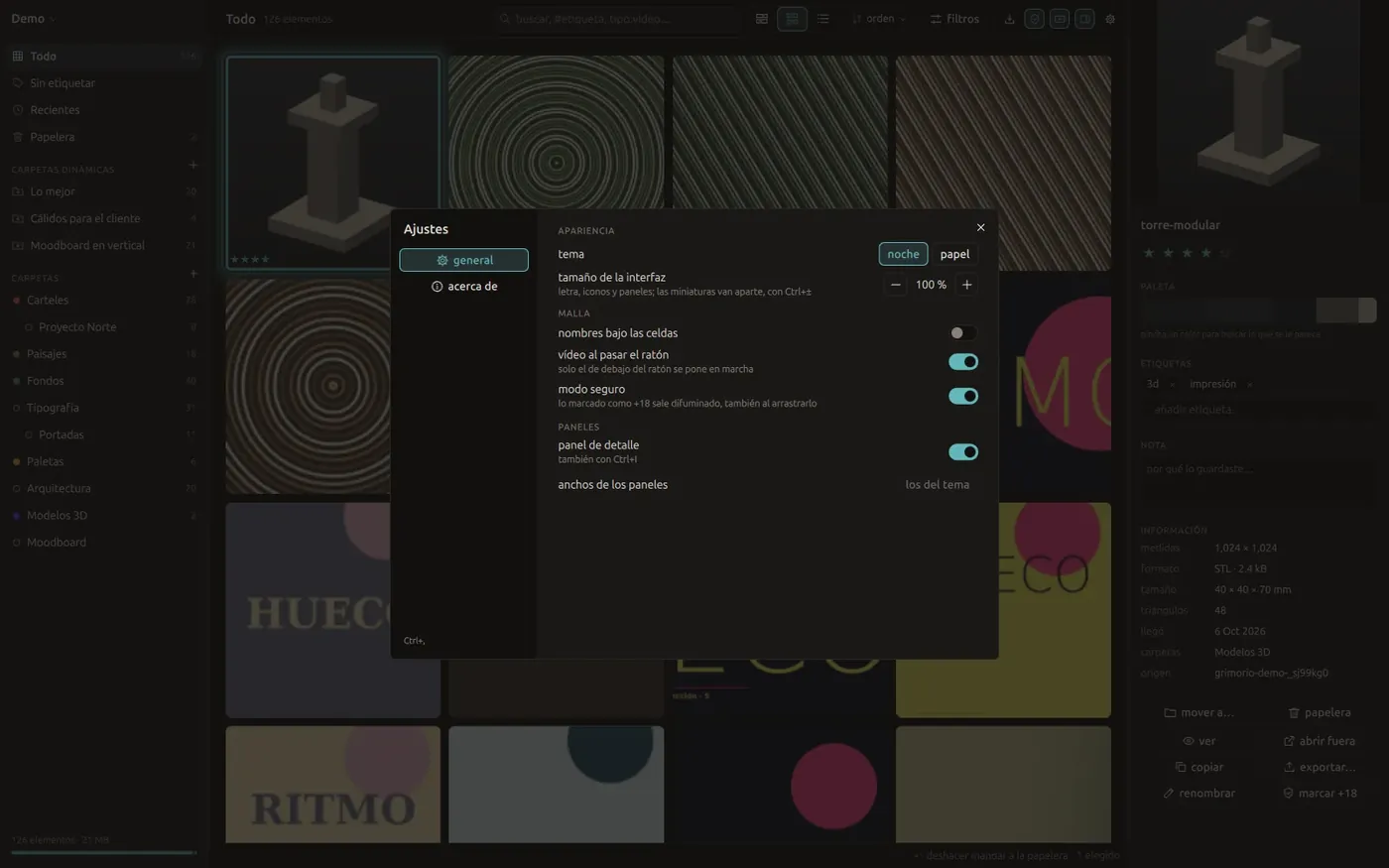
- Theme. «noche» (night), dark, or «papel» (paper), light.
- Interface size. Text, icons, spacing and panels, from 80 to 150%. Thumbnails are separate, with Ctrl+= and Ctrl+-, and stay sharp at any size.
- Names under cells.
- Video on hover. Only the one under the mouse plays.
- Safe mode. Blurs anything marked 18+.
- Detail panel, plus a button to reset the panels to their default width.
«acerca de» (about) shows the Grimorio and Qt versions and the name of the open library. That's what to copy when you report a bug.
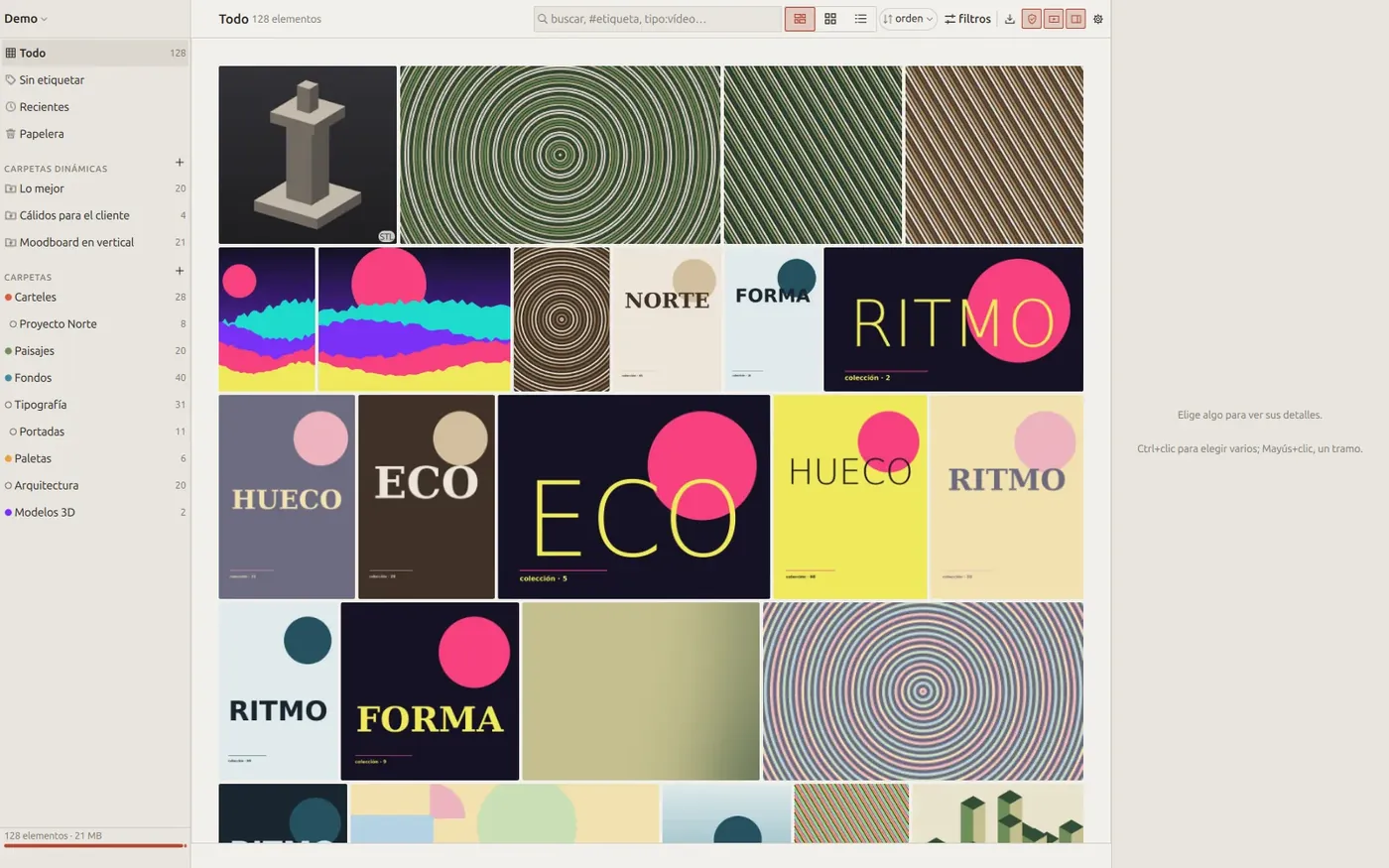
Your settings are saved in ~/.config/Grimorio/Grimorio.conf on Linux and %APPDATA%\Grimorio\Grimorio.ini on Windows. They're text files you can copy to another computer.
The interface's colors and sizes come from a JSON theme. To make your own, start from the ones in the project's temas folder and launch with grimorio --tema my-theme.json; every time you save the file, the window updates right away.
Troubleshooting and FAQ #
Grimorio says the library is already open
Each library opens in a single window, because two programs writing at once would overwrite each other. Look for the other Grimorio window. If it crashed, that's fine; next time you open the library, Grimorio sees that process is gone and opens it.
A video or PDF has no thumbnail
You're missing ffmpeg (video) or Poppler (PDF). See Optional tools. After installing it, close Grimorio and run grim miniaturas --tipo video (or documento) to rebuild thumbnails for what you already imported.
A video won't play
On Linux, check that qml6-module-qtmultimedia is installed. Without it, the viewer stays on the video's cover frame and offers to open it in your system player. If the format is unusual (ProRes, DNxHD), Grimorio makes a playable copy with ffmpeg; the first time takes a few seconds.
A .blend, .fbx, .psd or .eps file has no thumbnail
.blend and .fbx need Blender. PSD, XCF and EPS need ImageMagick (and on Windows, Ghostscript for EPS). grim mirar FILE tells you what Grimorio sees in that file and what's missing.
grim says the app has the library open
Commands that change things wait until you close the window. Searching and listing work with it open. If there really is no window open, the message tells you which lock file you can delete.
The arrow keys or number keys do nothing
The cursor is probably in a text field (search, a note, a tag). Press Esc or click the grid and the shortcuts come back.
Search misbehaves or items are missing after syncing
The index can always be rebuilt from the item.json files. Close Grimorio and run grim reindex.
I deleted something by mistake
Press Ctrl+Z. If you've already closed Grimorio, look in «Papelera» (trash) in the sidebar; anything there comes back with Delete or «recuperar» (restore). The only thing with no way back is emptying the trash.
On Windows, screenshots capture the whole screen
That's how it works for now. Picking an area is Linux-only so far. You can crop the image afterwards in your editor.
I installed ffmpeg on Windows and Grimorio doesn't see it
Close Grimorio and open it again (and your terminal, if you launch it from one) so it picks up the new PATH.
Does Grimorio connect to the internet?
Grimorio only goes online when you give it a web address to download. It has no accounts, no cloud and no analytics. Your files stay on your drive.
Is there a macOS version?
For now Grimorio is released for Windows and Linux. The code is free software (AGPL-3.0) and lives on GitHub.
I found a bug. Where do I report it?
Open an issue on GitHub with steps to reproduce it, the version (Ctrl+,, then «acerca de») and your system. If it involves a specific file, include what grim mirar FILE says. Issues in English are welcome.